
Three apps working as one
Stop juggling disconnected tools. Octopos unifies your management, service, and kitchen operations into one connected system.
Make decisions with real-time data
Live dashboards show revenue trends, inventory levels, and order flow. Get alerts when something needs attention so you can act before problems grow.
Everything in one workspace
Update menus, track orders, manage inventory, and monitor kitchen operations — all without switching between apps or spreadsheets.
Your team wins back hours
Intuitive design means new staff can start taking orders in minutes. Automatic syncing keeps everyone aligned without extra meetings or handoffs.
Built for every role in your restaurant
Each app solves real problems faced by owners, servers, and kitchen staff — without unnecessary complexity.
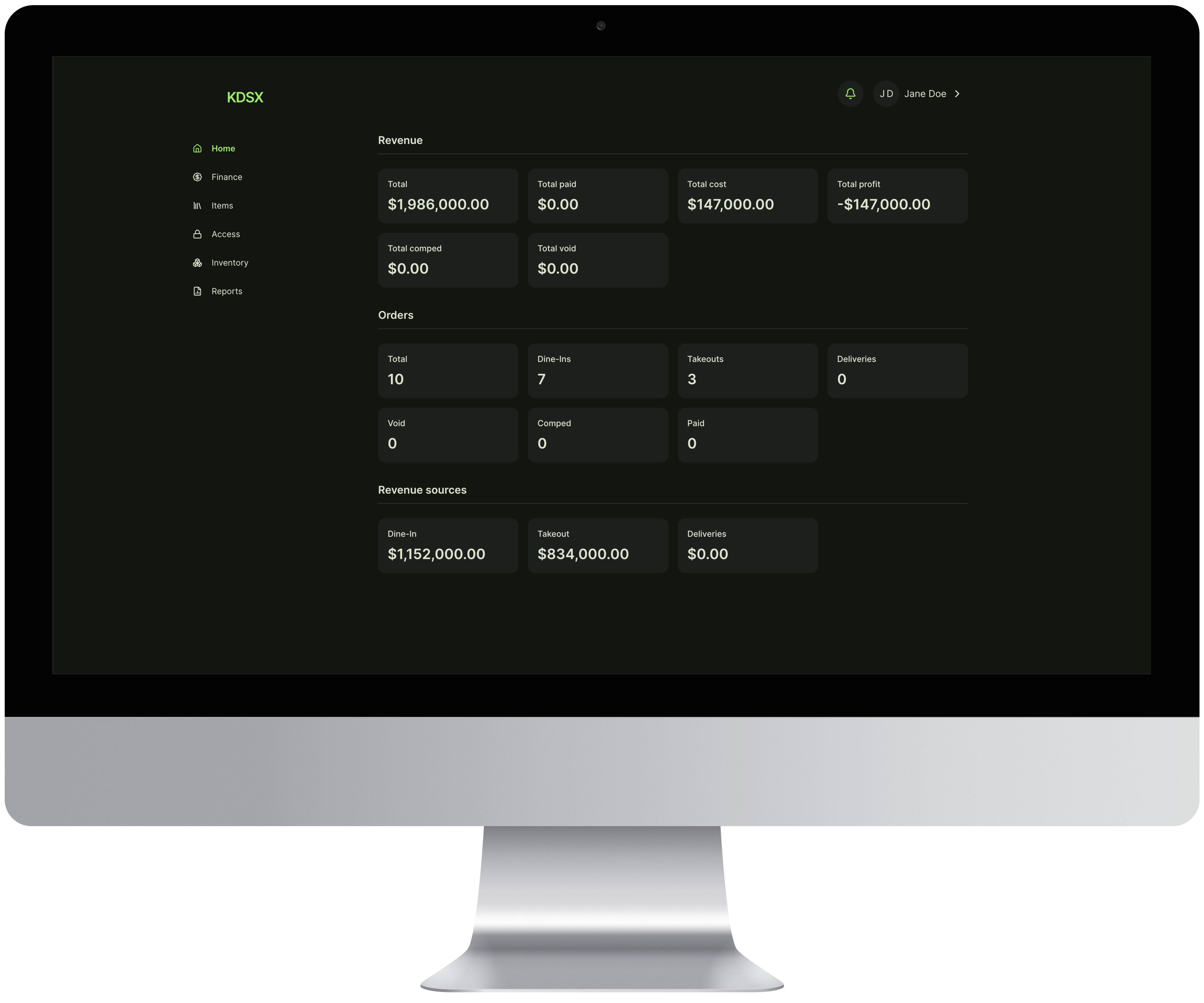
Complete business intelligence
Access real-time dashboards showing revenue trends, best-selling items, and hourly performance. Control staff permissions with role-based access. Organize your entire menu catalog with categories, variants, and ingredients. Set up stock alerts to never run out of key supplies.
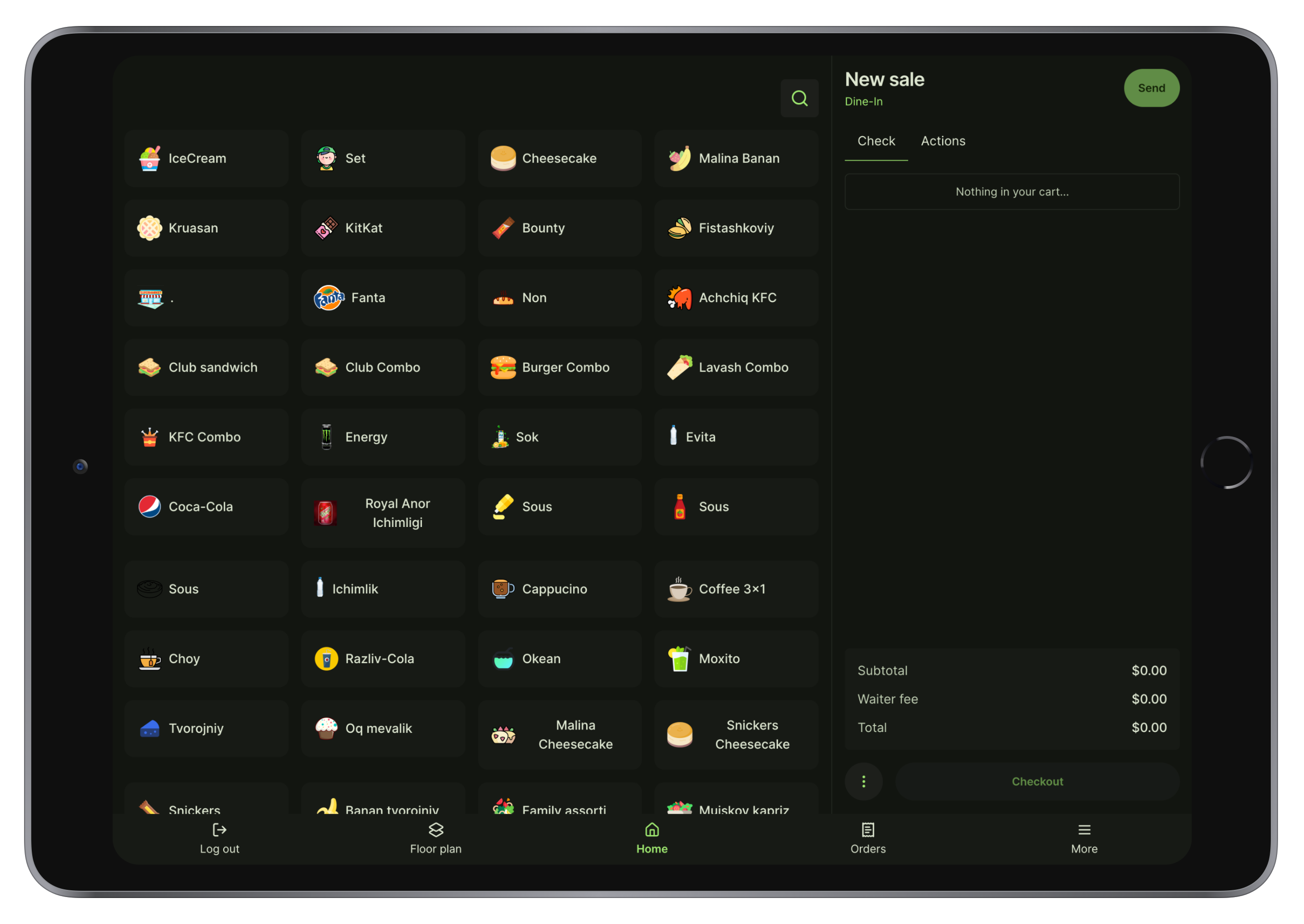
Visual floor and table management
See your entire floor plan at a glance with color-coded table status — green for available, yellow for reserved, red for occupied. Move orders to different tables or merge with existing orders in just a few taps. Handle check splitting, void requests, and comps with reason tracking.
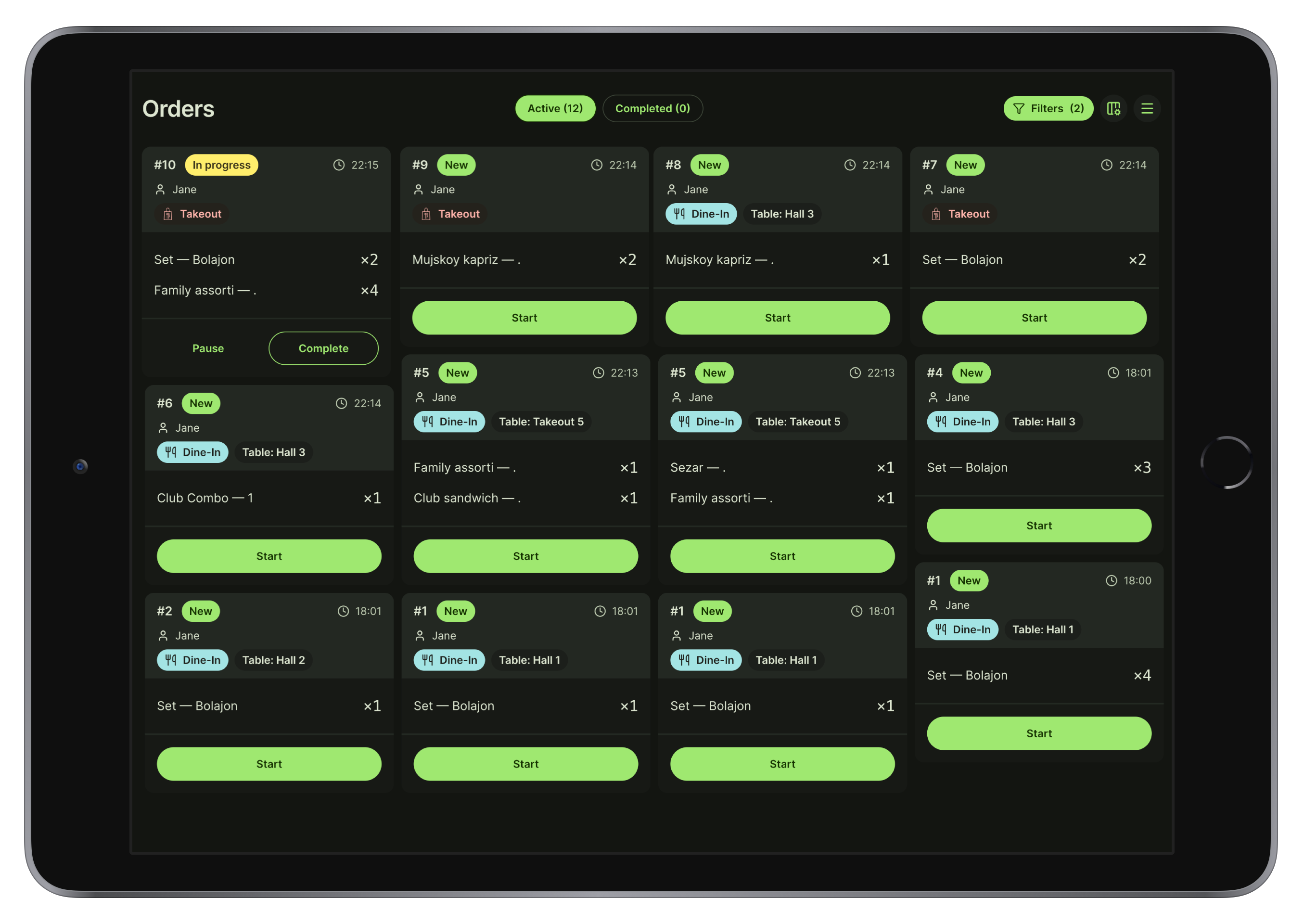
Smart station routing
Items are automatically sent to the correct prep station based on your configuration — hot food to the grill, cold dishes to salads, drinks to the bar. Each station sees only their tickets. Built-in timers track how long each order has been waiting. Audio alerts notify staff when new orders arrive.
Go live in three steps
Switching to Octopos is straightforward and guided.
Set up Dash
Add your items, design your floor plan, and set staff permissions — all from one place.
Launch POS
Your team can start taking orders immediately through the simple grid layout.
Activate Kitchen
Mount your kitchen display and watch orders flow in without delays.